Classroom controls
The control bar holds everything you need during a lesson. Which buttons you see depends on whether you are the host (the teacher who started it) or a participant.
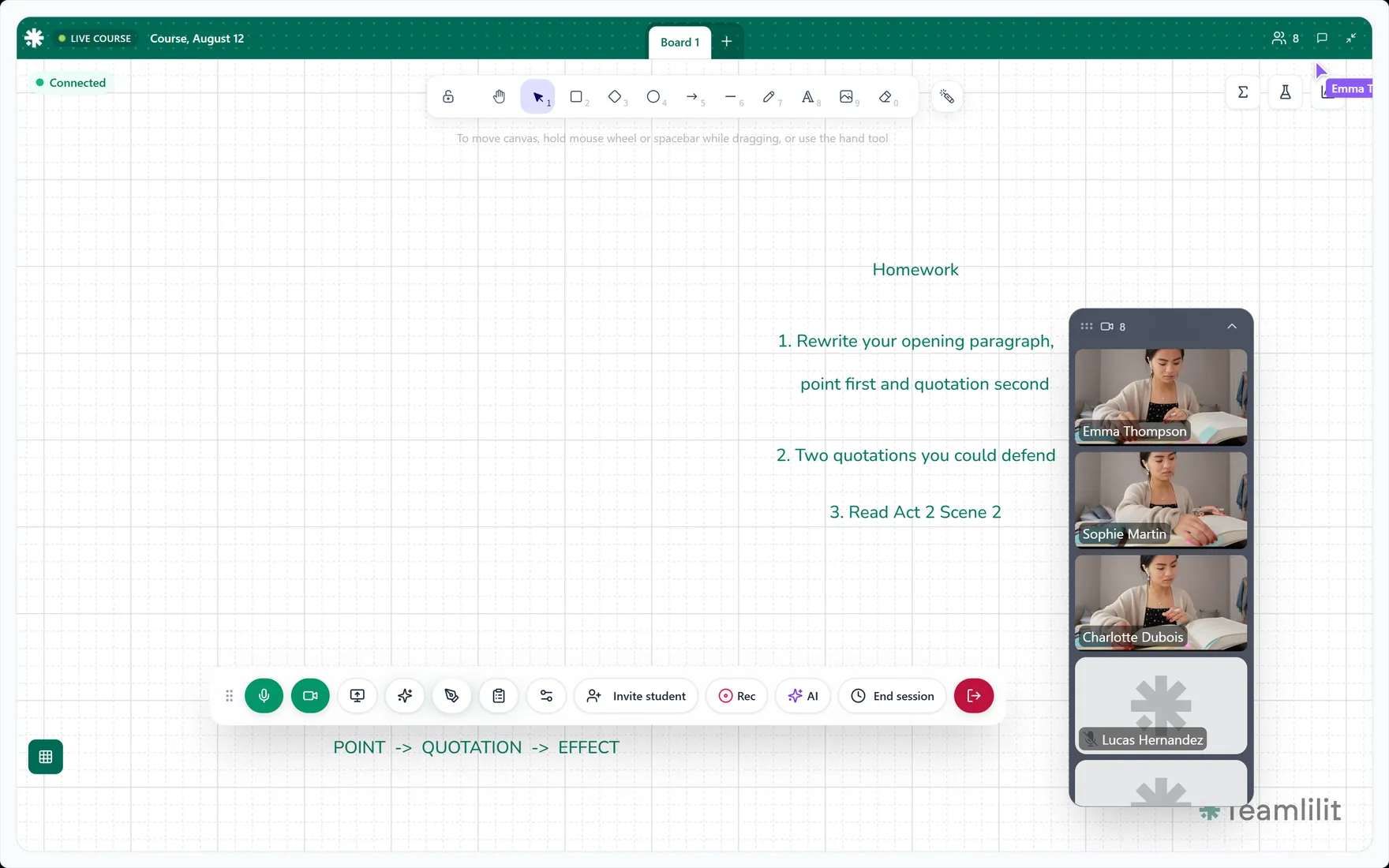
The control bar and the button group above it can be dragged out of the way if they are covering something you are working on.
Everyone has these
| Control | What it does |
|---|---|
| Mic | Mute and unmute yourself. |
| Camera | Turn your video on or off. On a phone, Flip camera switches front and back. |
| Share screen | Share your whole screen, one window, or a browser tab. |
| Background blur | Blur what is behind you, where your device supports it. |
| Chat | Open the chat panel. |
| Participants | See who is in the room. |
| Settings | Pick which camera, microphone and speaker to use. |
| Full screen | Expand the classroom. Press Escape to come back. |
| Leave | Leave the lesson. You are asked to confirm. |
On a phone the less-used controls move into a More options sheet rather than crowding the bar.
Students also get
- Raise hand: signals that you would like to speak. Your raised hand shows on your tile, and the teacher can bring you onto the main stage.
Not on the main stage? You can still watch, listen, use chat and raise your hand. The teacher decides who is on stage, which is what keeps a group lesson from turning into a wall of faces.
The host also gets
- Whiteboard: show or hide the shared board.
- Rec: start and stop recording, on Pro and Academy plans.
- AI: capture the lesson for an AI wrap-up.
- Student Review: open a student’s record without leaving the lesson.
- Add to stage and Remove: choose who is on the main stage, from a participant’s tile.
- Mute and Kick: manage a participant, also from their tile.
- End session: finish the lesson for everyone.