Getting started as a student
As a student you use Teamlilit to book lessons, join the live classroom and follow your courses.
Your dashboard
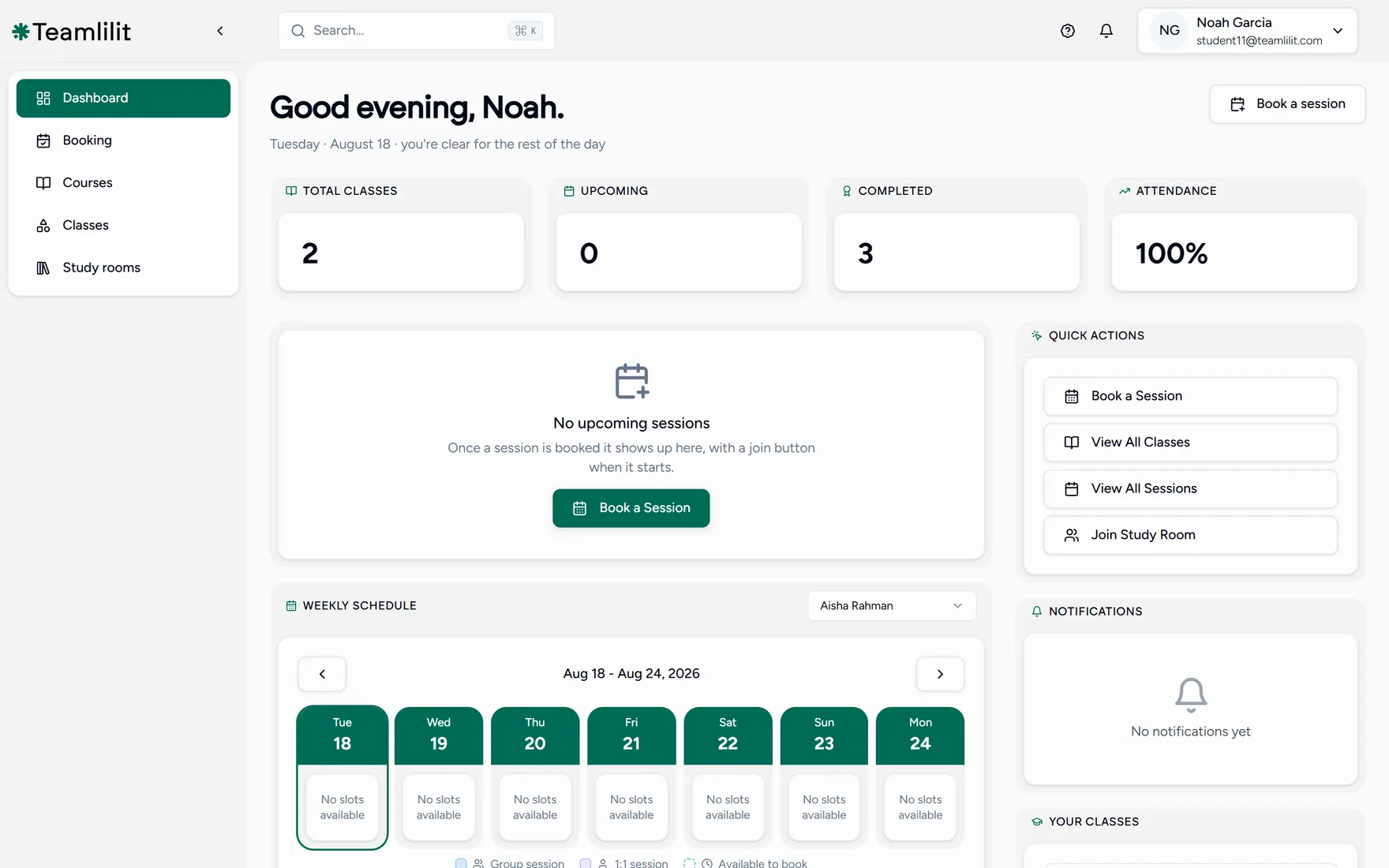
The menu on the left has everything you need:
- Booking: the times your teacher has opened up.
- Courses: the lessons and courses you are enrolled in.
- Classes: the groups you belong to and their schedules.
Across the top are your totals: classes, upcoming, completed, and your attendance. Your next lesson sits in the middle with a join button when it starts, and quick actions on the right get you to booking and your classes in one click.
The weekly schedule underneath shows one teacher at a time. If you learn with more than one, switch between them with the selector above it.
Book your first lesson
Open Booking
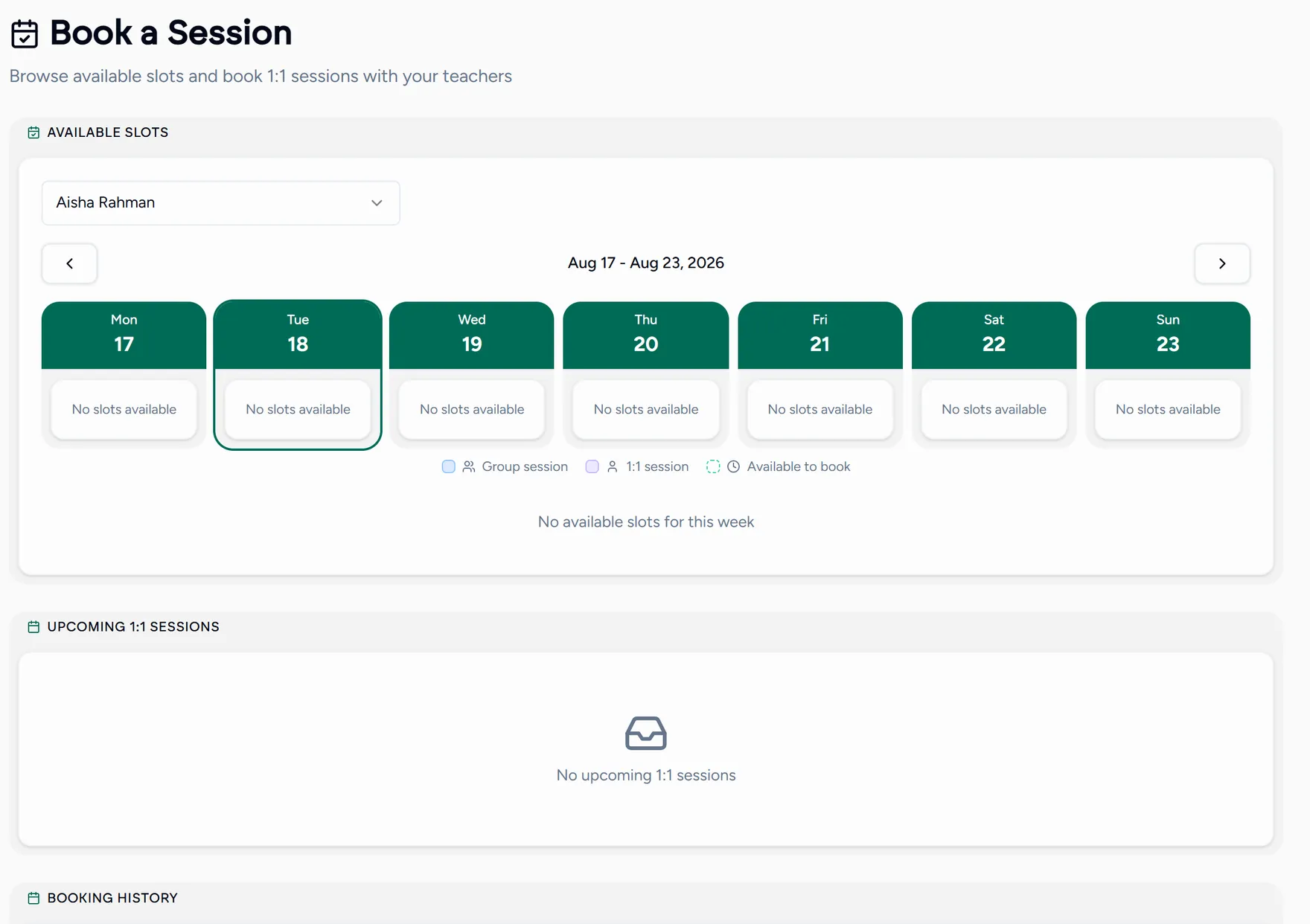
If you work with more than one teacher, pick the teacher first to see their open slots.
Choose a time
Slots are shown in your timezone, so there is nothing to convert. Pick the one that suits you.
Add a note, then confirm
You can add a short message saying what you would like to work on. Confirm, and you will see one of two results:
- Confirmed: your teacher accepts bookings automatically and you are booked.
- Pending approval: your teacher reviews requests first, and you will be notified when they accept.
Your teacher may also have a public page at a link like
teamlilit.com/t/their-username. You can request a slot straight from there,
even before you have an account.
Join the lesson
When it is time, open the lesson from your dashboard and choose Join. The classroom runs in your browser, so there is no app to install and no separate meeting link to find.
See Joining a live class for what to expect the first time, including the camera and microphone prompt.
Finding your lessons again
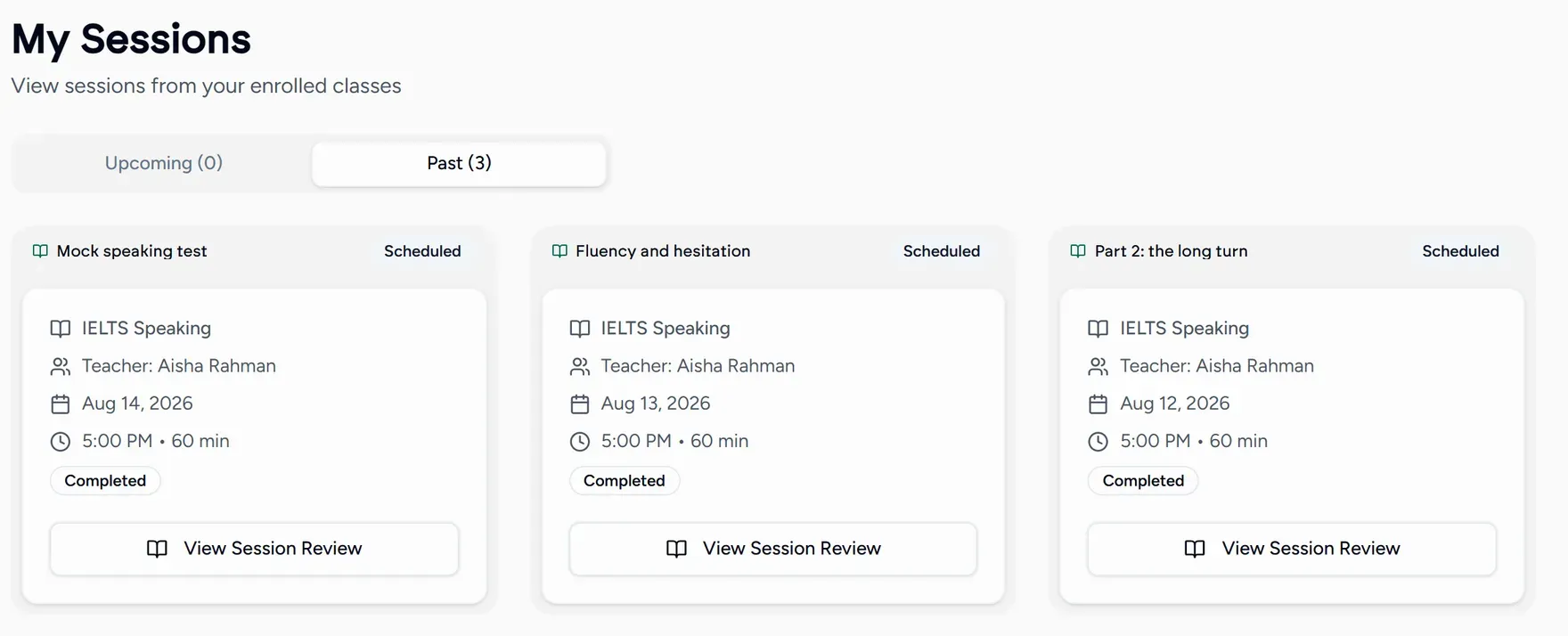
Courses lists everything you are enrolled in, past and upcoming, with the materials your teacher shared.
After the lesson
Your teacher writes a wrap-up: what you covered, and what to do before next time. Anything shared during the lesson stays with the lesson, so notes, homework and files are all in the same place when you come back to them.