Getting paid
Sending an invoice
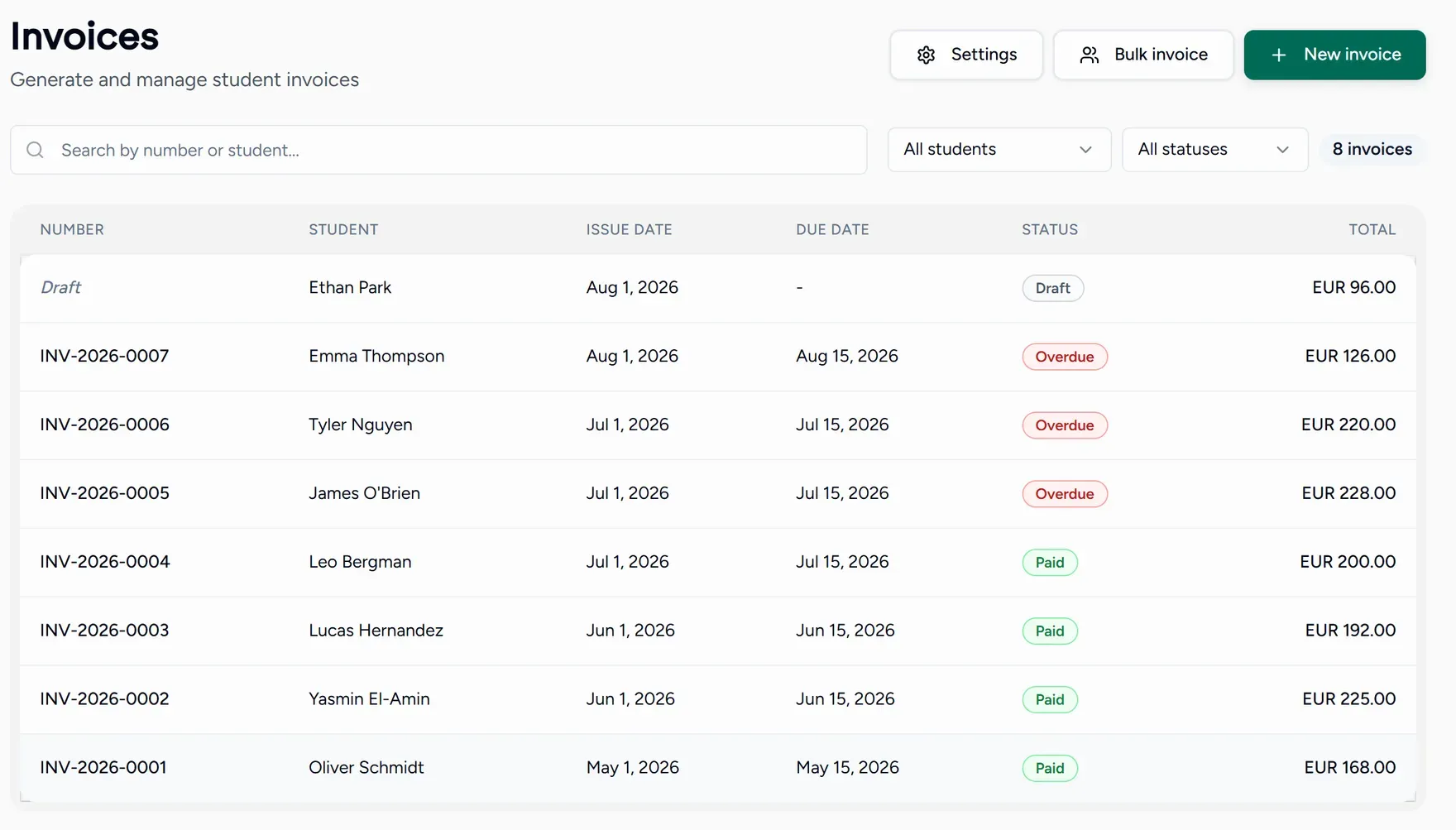
Open a draft and choose Send invoice. It goes to the bill-to email with the PDF attached, and the invoice moves to sent.
You can also download the PDF and send it yourself, or mark sent if you handed it over some other way.
No bill-to email on this invoice means the student or guardian has no email recorded. Add one on their student record and try again.
Recording a payment
Teamlilit does not take the money for you. It records what you have received, so the invoice and your bank agree.
Choose Record payment
On the invoice.
Enter what arrived
The amount, the method (bank transfer, cash, card, PayPal or other), the payment date, and a reference if you have one.
Save
The invoice shows paid and due amounts. Once the full total is covered it is marked fully paid.
Part payments are fine. Record each one as it arrives and the balance follows.
Refunds and credit
A lesson billed in advance and then cancelled is handled with a credit note rather than by editing an issued invoice.
Choose Issue credit note, enter the amount and a reason, then pick the outcome:
- Add to account credit: the amount goes into that payer’s balance and is applied automatically to a future invoice.
- Refund: records that you refunded them. You make the actual transfer through your own bank; Teamlilit records the intent.
Chasing what is owed
- The Get paid step on your dashboard counts overdue invoices, so you see them without going looking.
- An account statement for a payer lists all activity or just open items, and downloads as a PDF. It is the right thing to send when someone asks what they still owe.
- Late fees can be added automatically a set number of days after the due date. See Invoice settings.