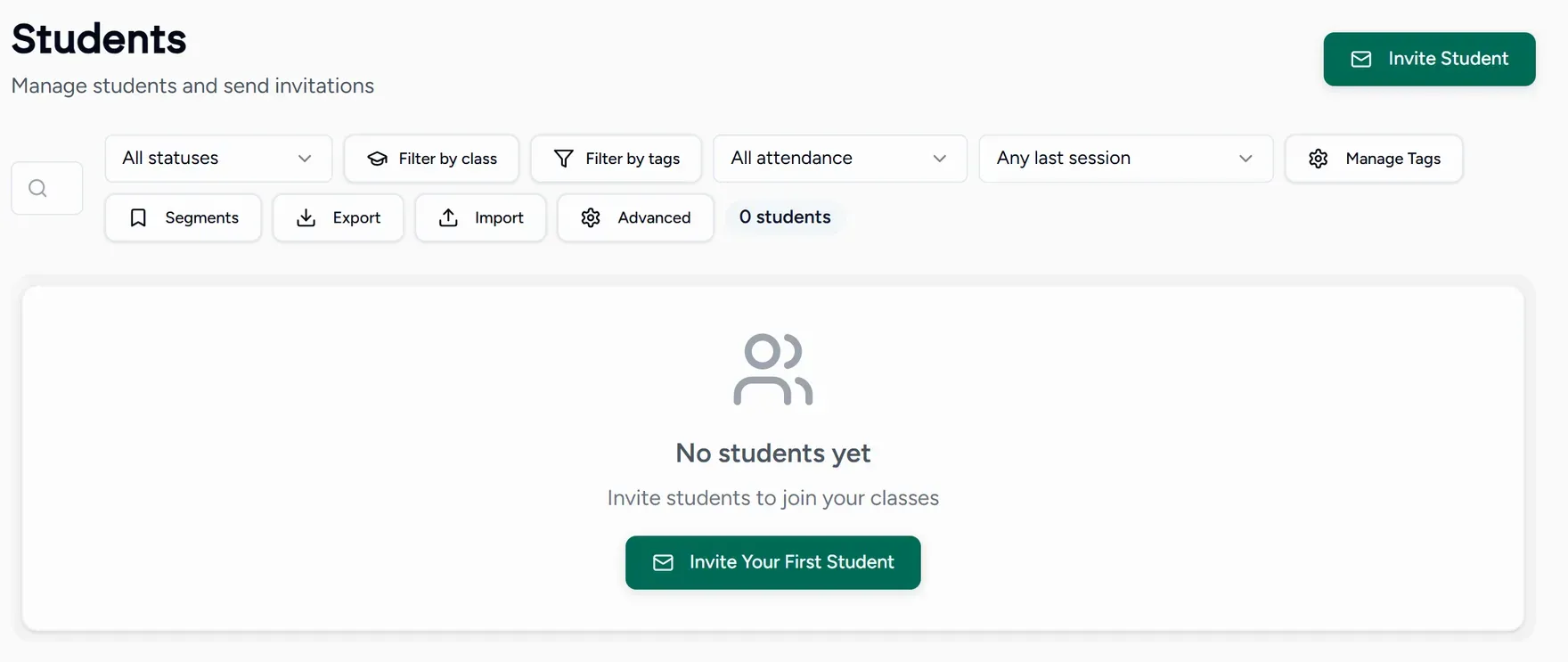
Getting started as an academy
An academy account suits a teaching business with more than one tutor. You keep everything a single teacher has, and gain a view across the whole team.
Your dashboard
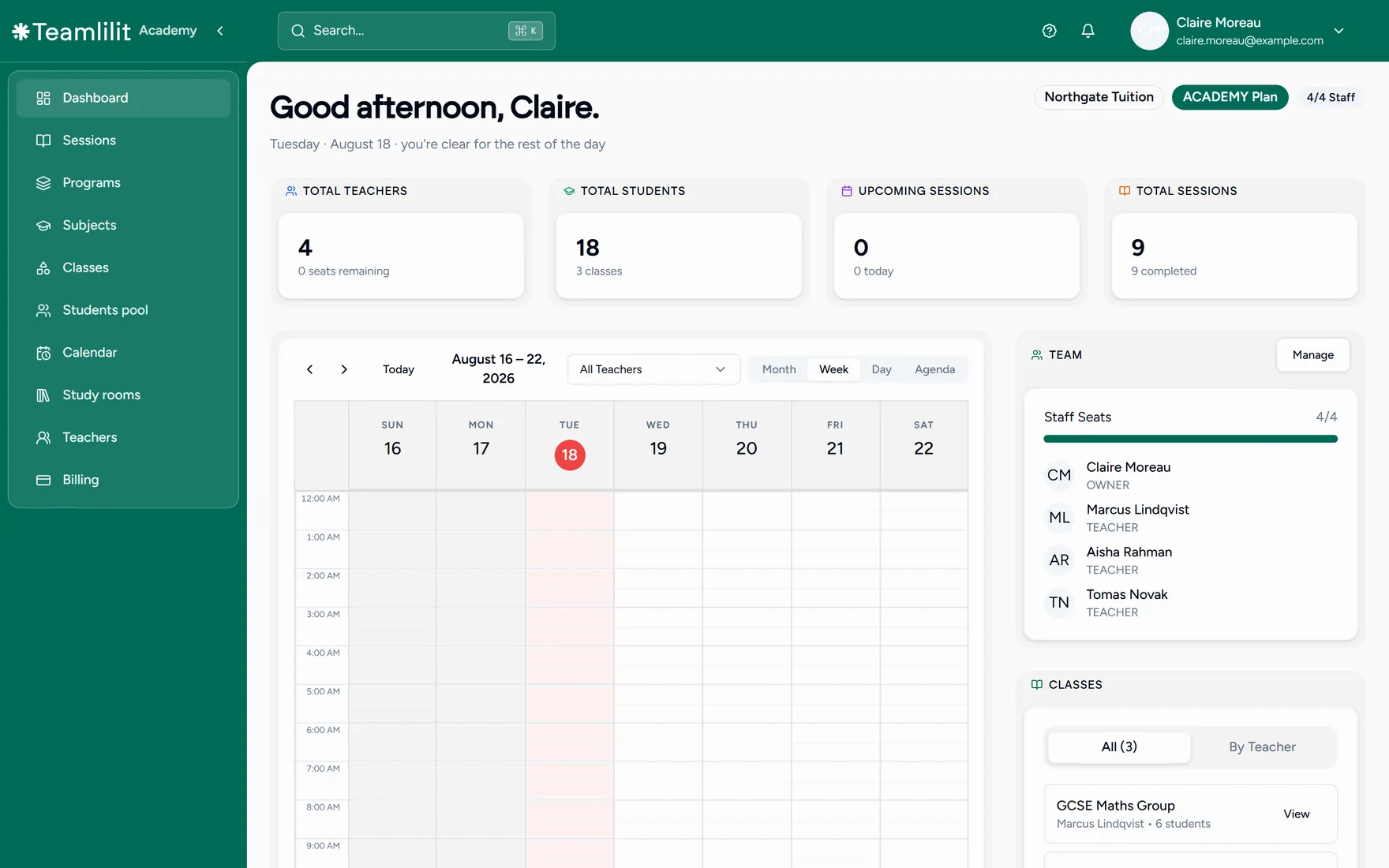
Instead of one person’s week, you see the centre’s: who is teaching what, and how the business is doing.
Setting up
Complete the academy profile
Add your academy name, logo and details in Settings, so teachers and students recognise who they are joining.
Invite your teachers
Open Teachers and invite each tutor by email.
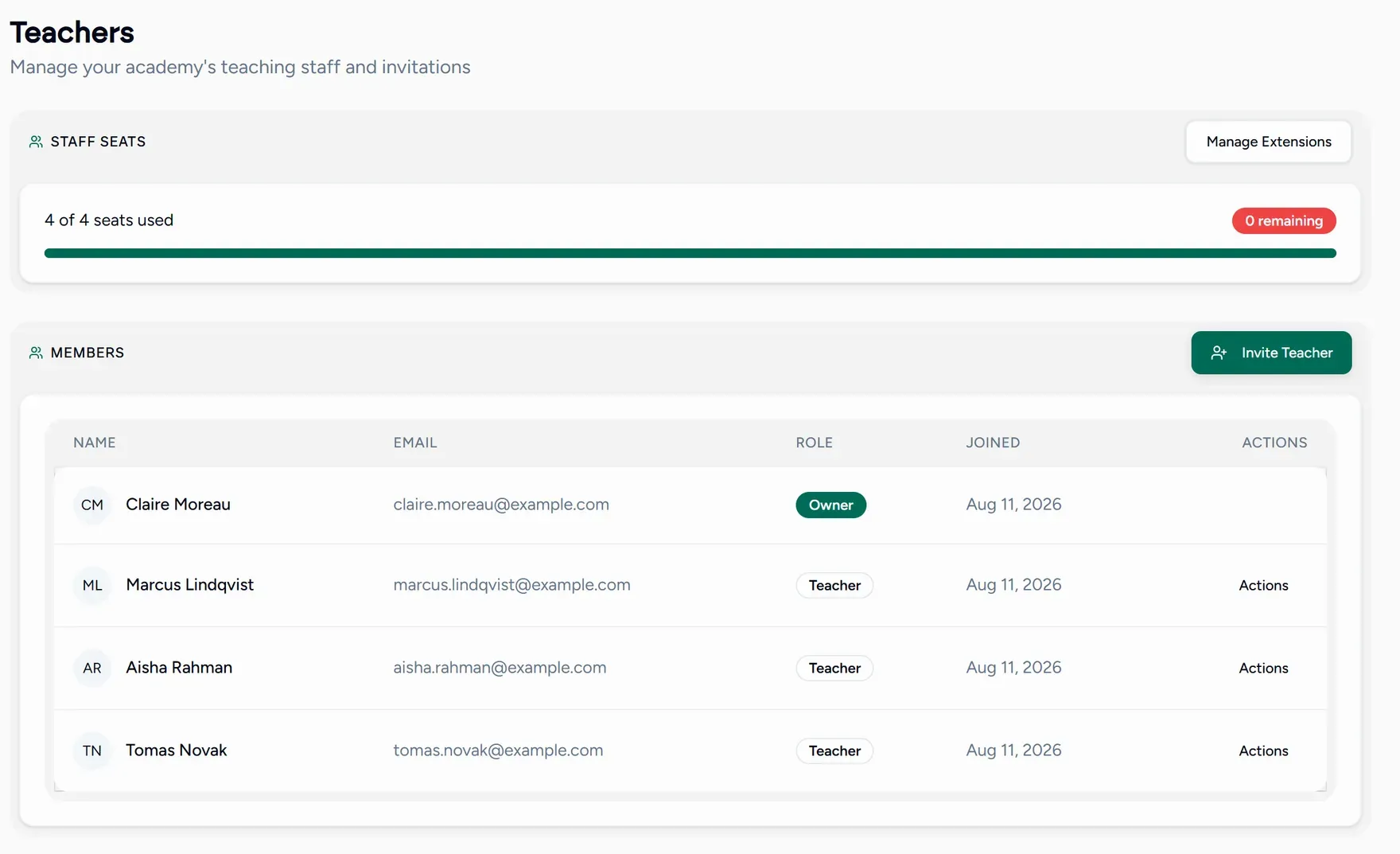
They accept from their inbox and are attached to the academy automatically. If they are already signed in it is accepted immediately; if not, they are guided through registering first. Nothing needs linking by hand.
How many teachers you can add depends on your plan and any staff seats you have added. Check Billing before inviting the whole team. See Plans and limits and Add-ons and extras.
Set up a shared curriculum
Create Subjects and Programs at the academy level so every tutor works from the same structure rather than inventing their own. A program can be imported if you already have the curriculum written down somewhere.
See Shared curriculum.
Running the team
- Teachers: who is on the team, what they teach, and their students.
- Students: one roster for the whole academy, with a comparison view for tracking progress across tutors.
- Billing: one subscription and one set of limits for everyone.