Joining a live class
The classroom runs in your browser. There is no app to install and no separate meeting link to hunt for in your inbox.
Before your first lesson
- Use an up to date browser: Chrome, Edge, Firefox or Safari.
- Allow camera and microphone access when the browser asks.
- Headphones stop your speakers echoing back into the call.
- A wired connection or strong Wi-Fi beats a weak signal every time.
Phones and tablets work too. Just make sure the browser has permission to use the camera and microphone, which some phones ask for separately in system settings.
Getting in
Open your dashboard
Your next lesson is on your dashboard, and you get a reminder before it starts.
Choose Join
The Join button appears on the lesson once your teacher has started it. The classroom opens in the same tab.
Allow camera and microphone
Say yes to the browser prompt. You can still join with either turned off and switch them on later from the control bar.
Inside the classroom
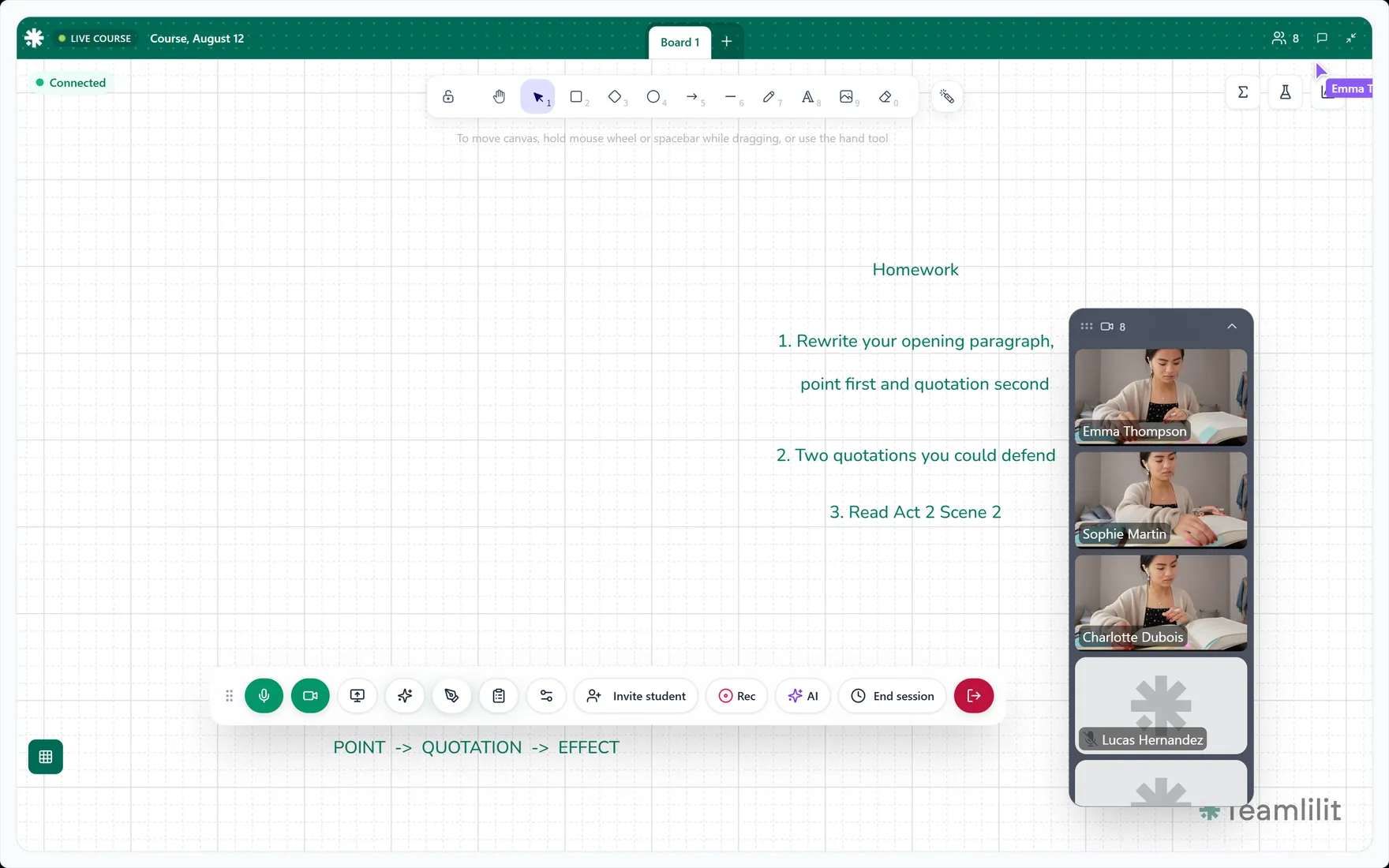
You have:
- Live video with your teacher and classmates.
- Screen sharing for slides, documents and demonstrations.
- A shared whiteboard everyone can work on at once.
- Chat for questions and links.
- File sharing during the lesson.
- Recording on eligible plans, so the lesson can be watched again later.
Every button is explained in Classroom controls.
If something goes wrong
No picture or no sound? Check the browser has camera and microphone permission, close any other app using the camera, then refresh the page. Most problems are one of those three.
More fixes in Troubleshooting.