Parents and guardians
With younger students, the person who books, pays and asks how it is going is usually not the person in the lesson. Teamlilit keeps that person attached to the student rather than in your phone.
Adding a guardian
Open a student and choose Add guardian. You record their name, their relationship (mother, father, guardian) and their contact details. A student can have more than one, and the same person can be the guardian of two siblings.
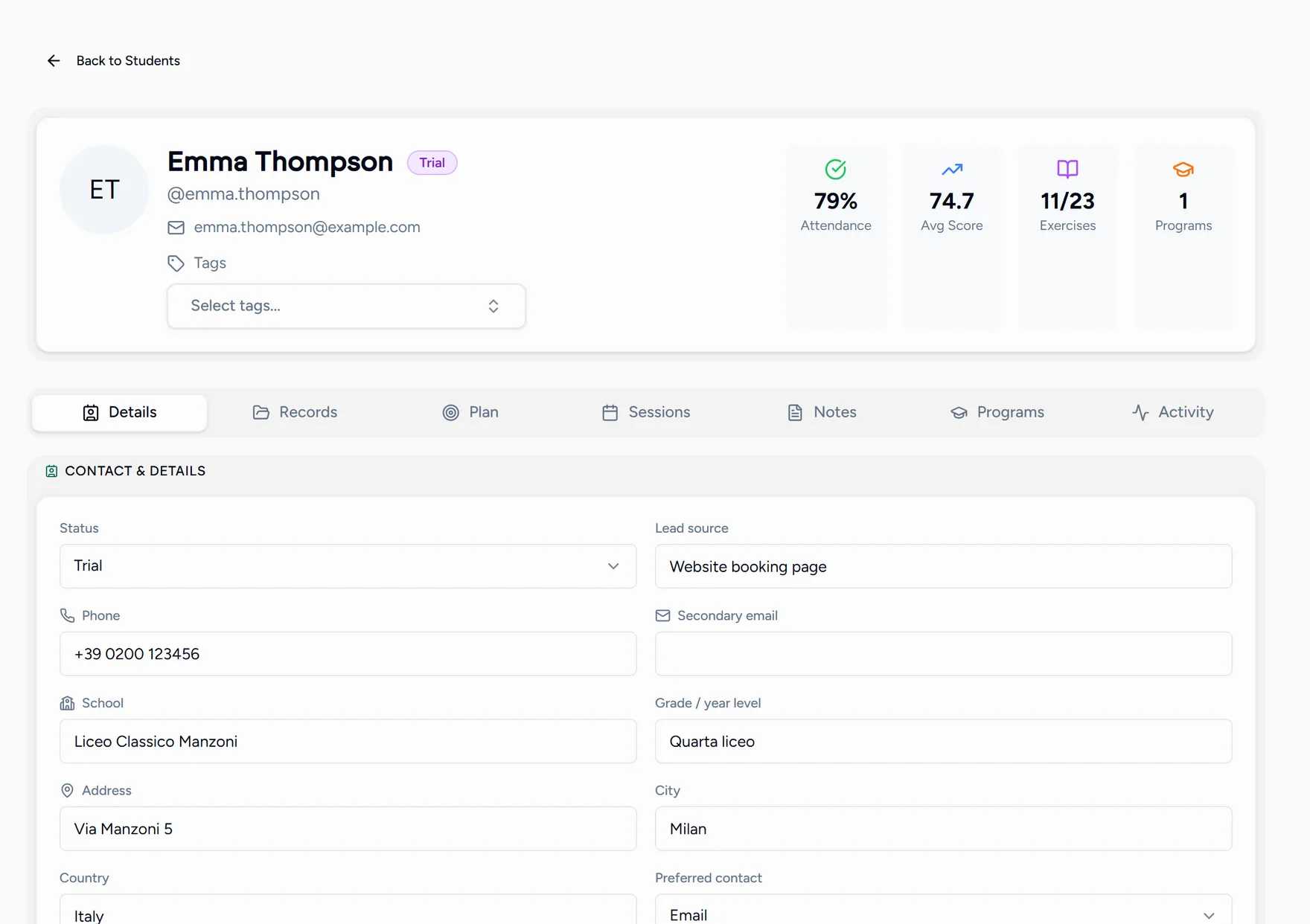
Once a guardian has an email on file, two things become possible.
Sending the recap after a lesson
The wrap-up recap goes to the student automatically. Parents do not get it unless you send it.
Finish and save the wrap-up
Send to parents appears on the wrap-up once there is something to send.
Decide whether to include your notes
Include my session notes is off by default. Your notes are written for you and the student, and they are not always meant for a parent to read. Turn it on when they are.
Send
You are told how many parents it reached. If someone is missing an email address, it says so by name rather than failing quietly.
The parent link
A guardian can also have a private page showing how their child is doing, without an account and without seeing anyone else’s children.
On the student’s record, choose Parent link next to the guardian. The link is copied to your clipboard for you to send however you like.
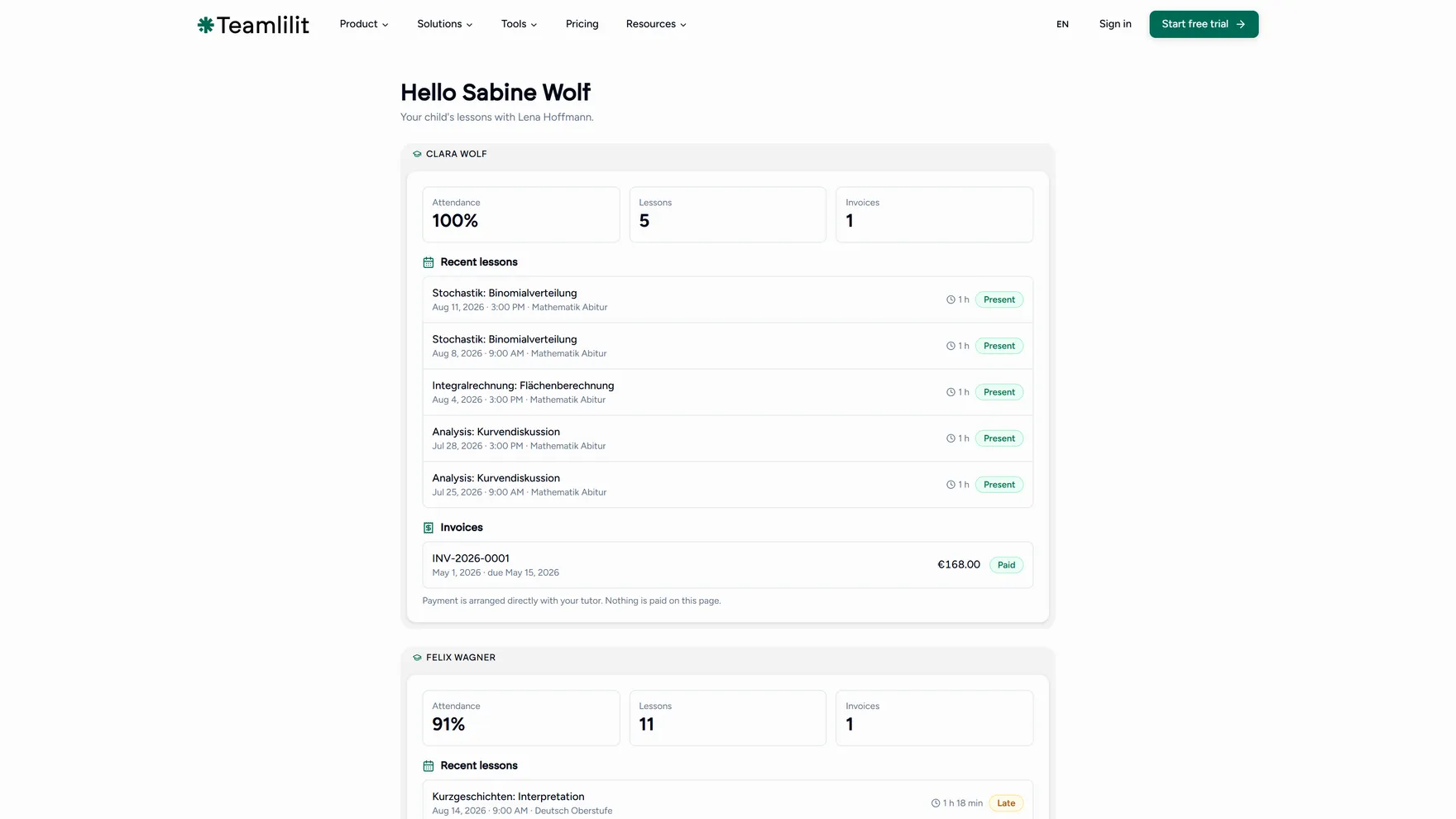
The page shows, per child:
- Attendance as a percentage, and the number of lessons.
- Recent lessons with the date, subject, how long the child was in the lesson, and whether they were present or late.
- Invoices with their amount and status.
Nothing is paid on that page. It says so on the page itself: payment is arranged directly with you. It is a window, not a checkout.
Treat the link like a password. Anyone holding it can open the page. If it reaches the wrong person, choose Turn off parent link on that guardian and the link stops working immediately.