Creating an invoice
An invoice is generated from lessons you have already taught, so the hours on it come from the record rather than your memory.
Choose New invoice
From the Invoices screen.
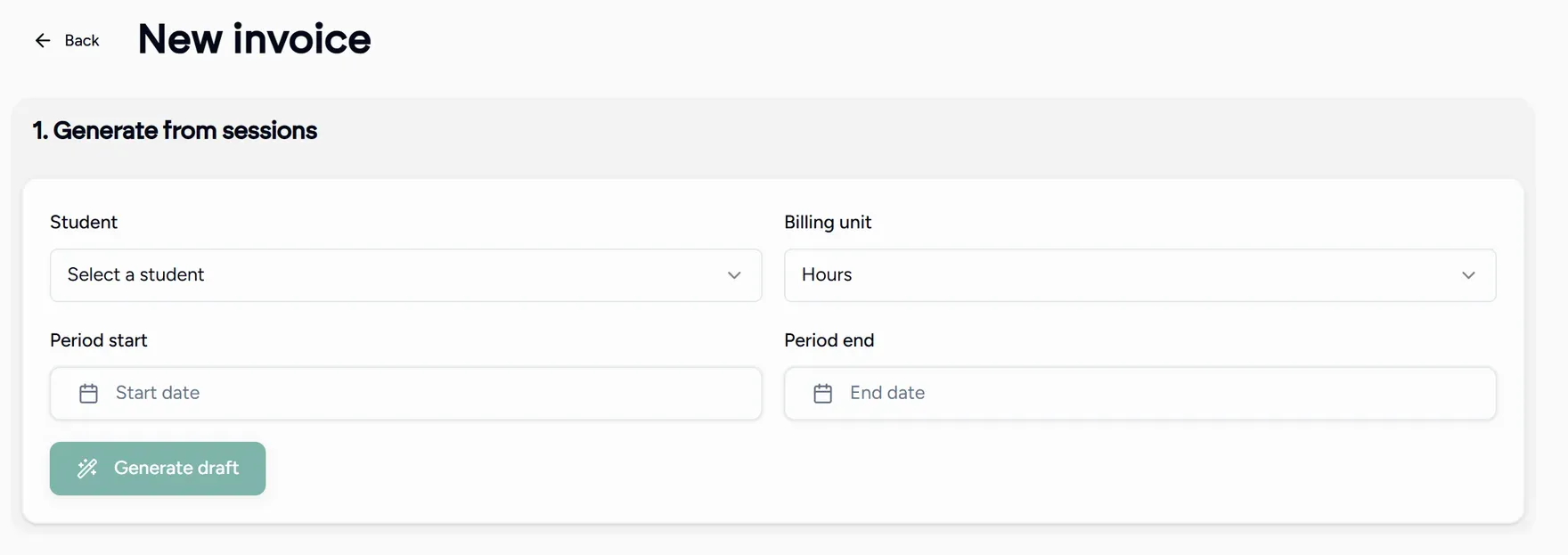
Generate from sessions
Pick the student, the billing unit (hours, sessions or a fixed amount), and the period start and period end. Choose Generate draft and Teamlilit builds the line items from the lessons in that window.
Review the line items
Every lesson becomes a line. Change a rate, remove a line, or add a manual line for anything that was not a lesson.
Lines marked as estimated come from a lesson whose exact duration was not recorded. Check those before you send.
Fill in the invoice details
Set the issue date, an optional due date, any discount, the currency, and notes such as payment terms.
Save
Save invoice creates it as a draft. Nothing has been sent yet, and the totals are recalculated on save.
Invoicing several students at once
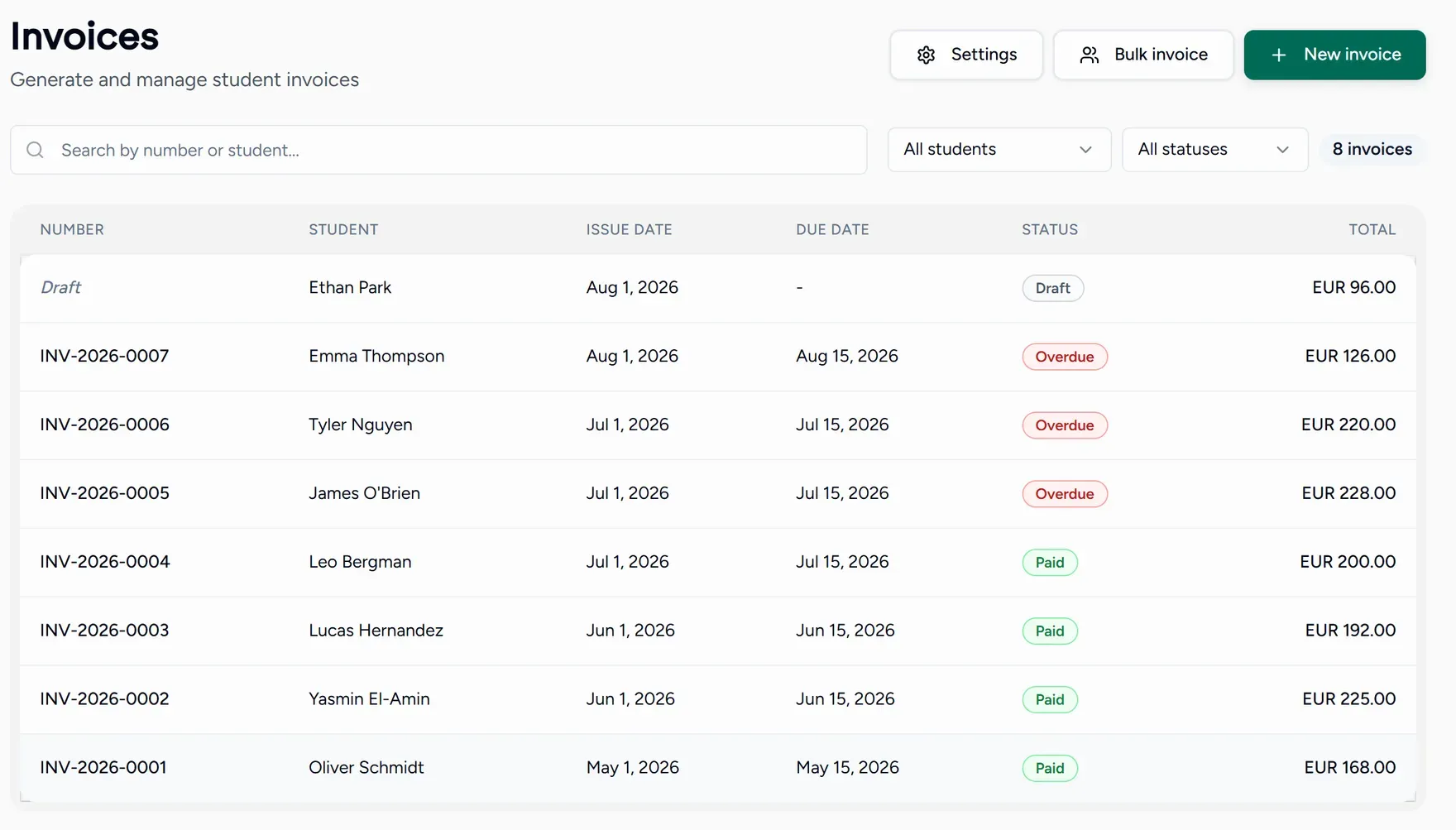
Bulk invoice on the Invoices screen bills a whole group in one pass:
- Select recipients by students, by class, or by tag.
- Options: the period, the billing unit, and whether to produce one invoice per student or one consolidated invoice (for a family with two children, for example).
- Review what will be created before anything is.
The review step also warns you about students with no rate set, students on a different currency, and anyone skipped for having no billable lessons.
Recurring invoices
If you bill the same student every month, set up a recurring schedule in invoice settings. Teamlilit then creates a draft each month from the previous month’s lessons. It stays a draft, so you still see it before it goes out.