Availability and calendar
Your calendar is both a view of your week and the place you open hours for students to book.
Reading your calendar
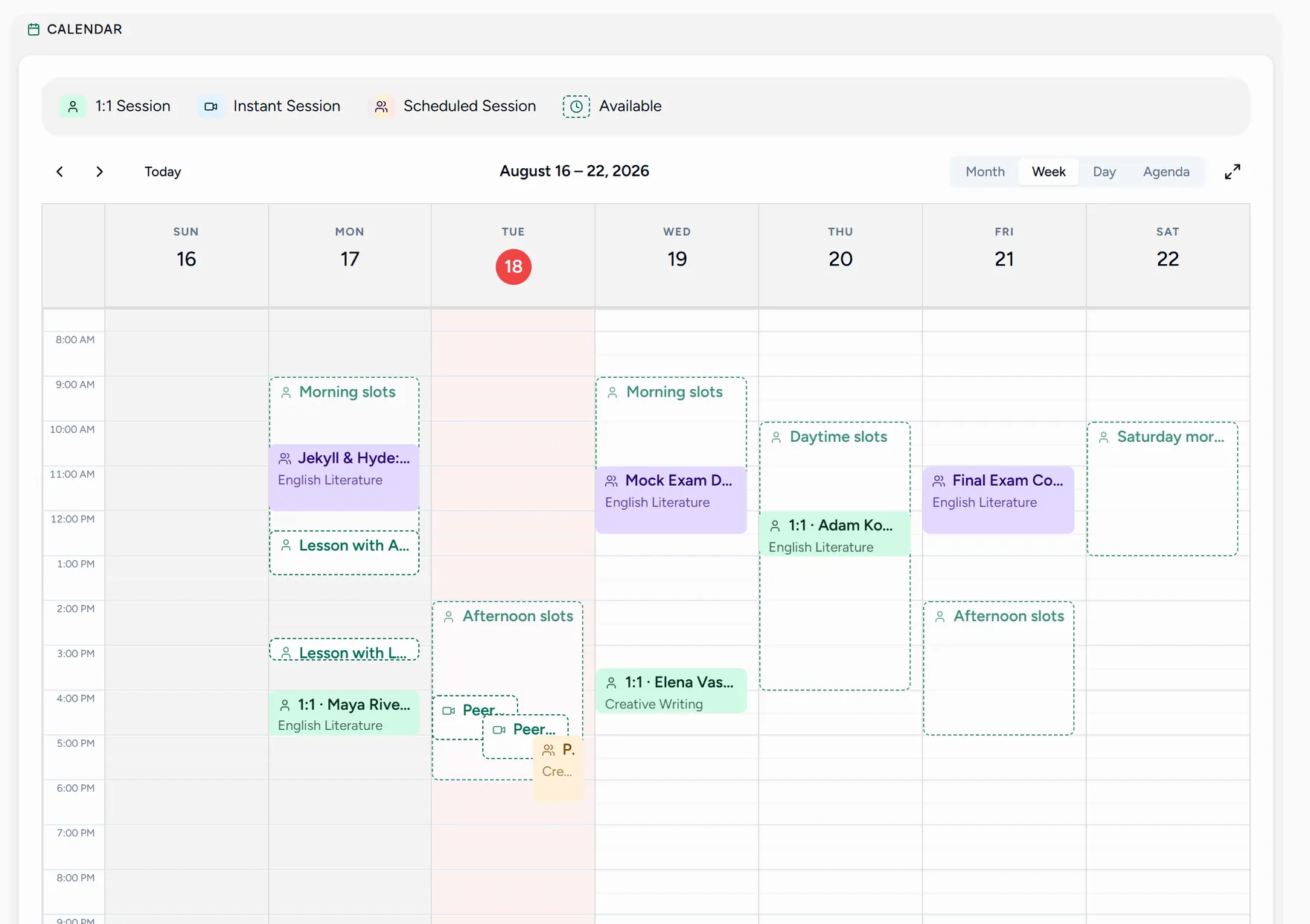
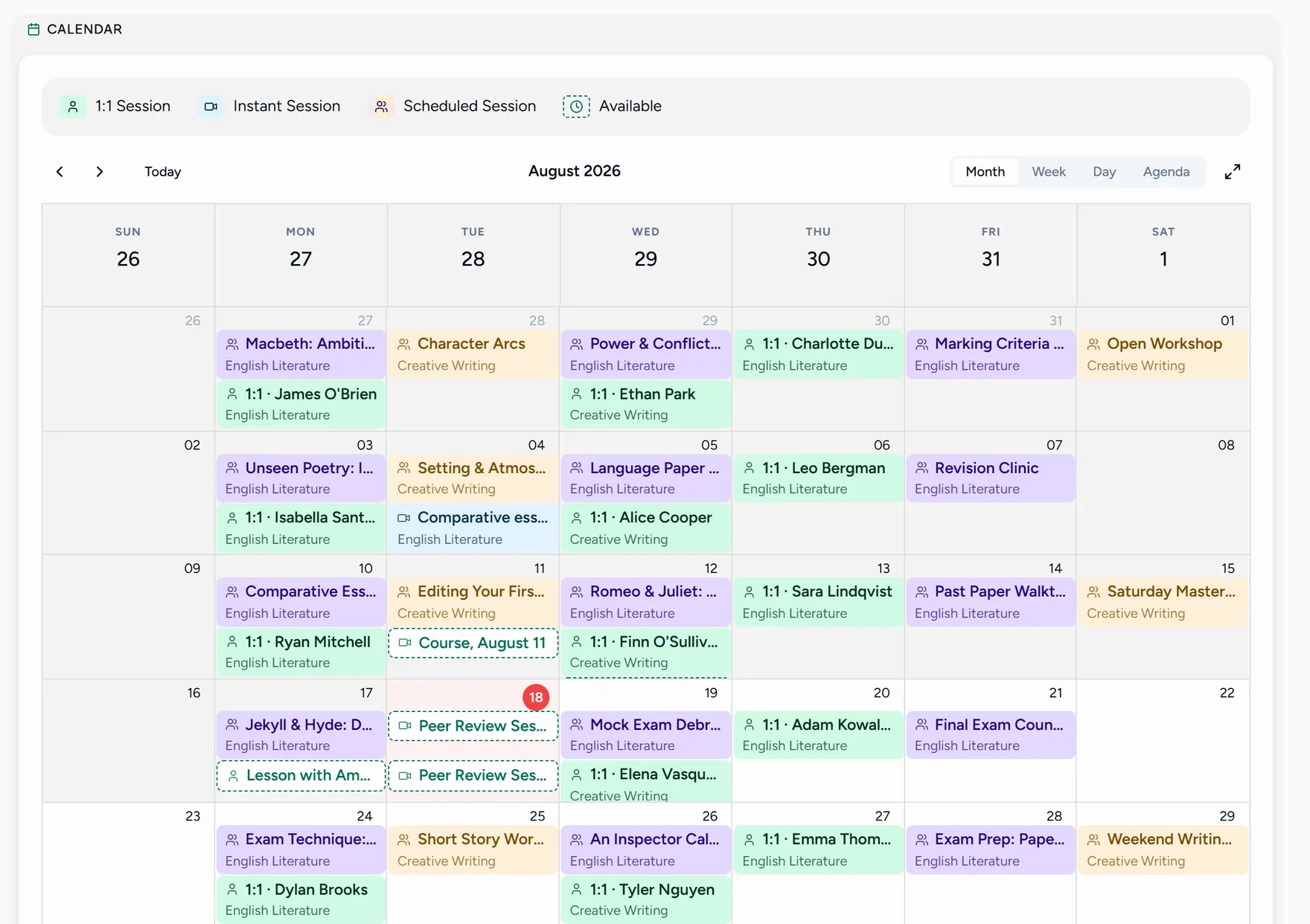
Switch between Month, Week, Day and Agenda with the buttons above the grid, and move through time with the arrows next to Today.
Lessons are colour coded by type, and your open availability windows appear as outlined blocks so you can see at a glance which hours are still free.
Opening hours for booking
Availability is what makes self booking possible: students pick from your open windows instead of messaging you to agree a time.
Switch to Week
Availability windows are set per weekday, and the week grid is where you drag them out.
Drag over the hours you want to open
Drag from the start time to the end time on an empty part of the grid. A small menu appears with two things you can do with that time.
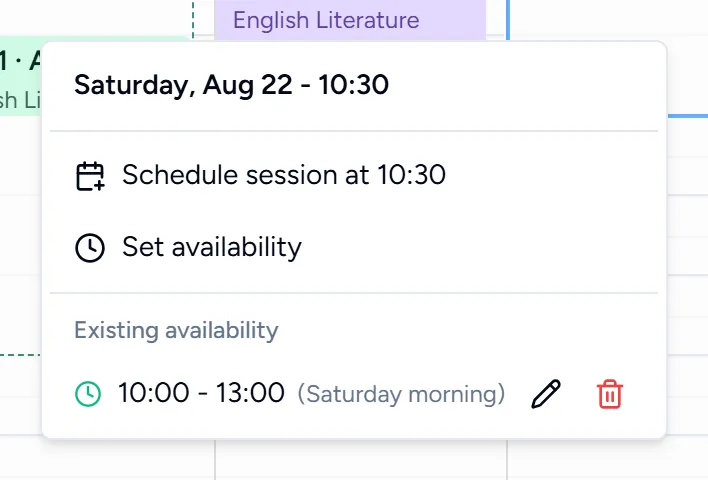
Choose Set availability
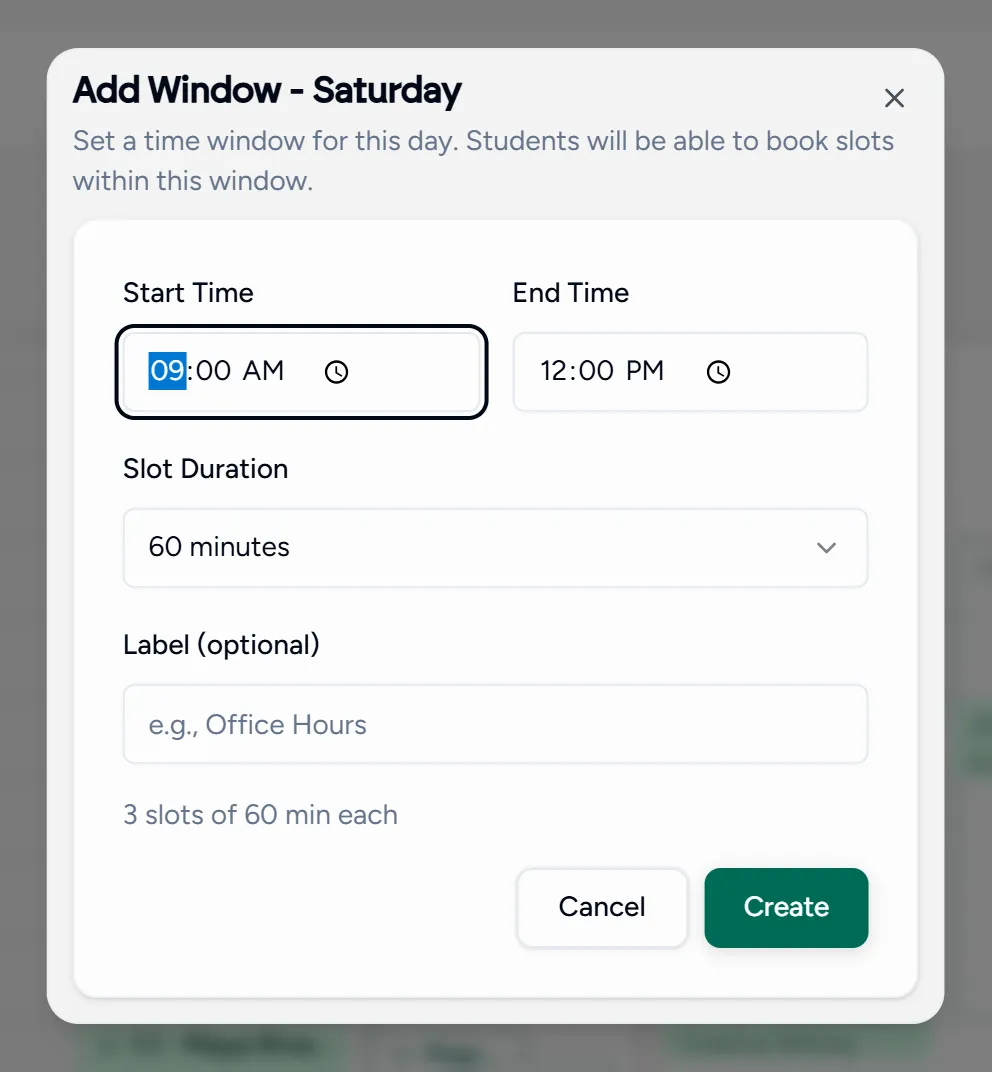
That opens the window editor for that weekday.
Set the window
- Start time and end time: the span you are willing to teach.
- Slot duration: how long each bookable slot inside it is. A 09:00 to 12:00 window at 60 minutes becomes three bookable hours, and the dialog tells you so before you save.
- Label: optional, and only for you. Something like “office hours”.
Create saves it. The window repeats every week on that day until you remove it, so a normal teaching week is set up once.
Every student sees your windows converted into their own timezone, so you never have to do the arithmetic or explain it in a message.
Changing a window you already set
Drag over that day again. The same menu lists the windows already on it under existing availability, with a pencil to edit one and a bin to remove it. Removing a window stops new bookings; lessons already booked inside it stay where they are.
Changing or cancelling a lesson
Click a lesson on the calendar to open its details, with the actions available on it.
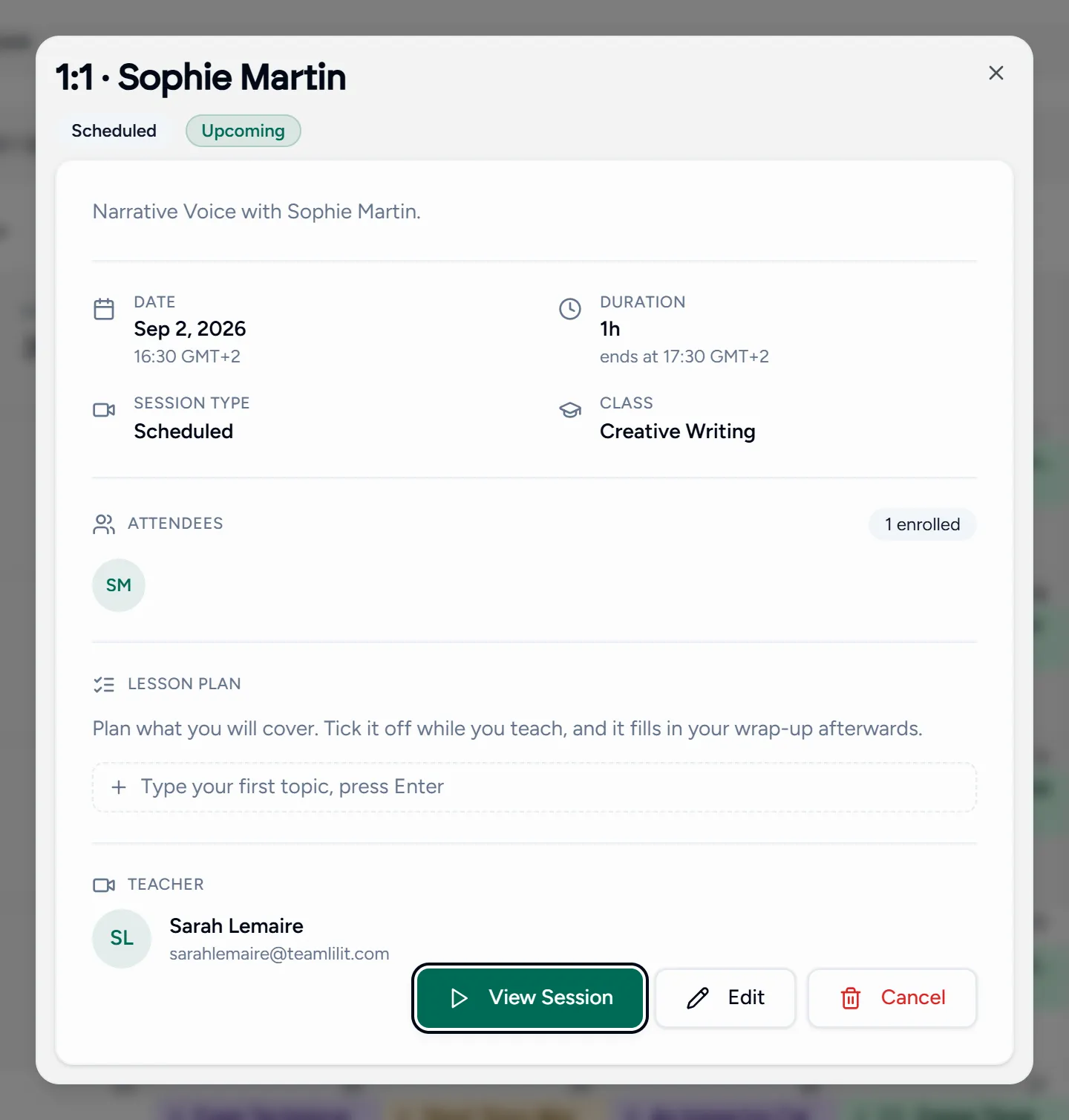
A lesson that has already happened shows as completed instead, since there is nothing left to change.